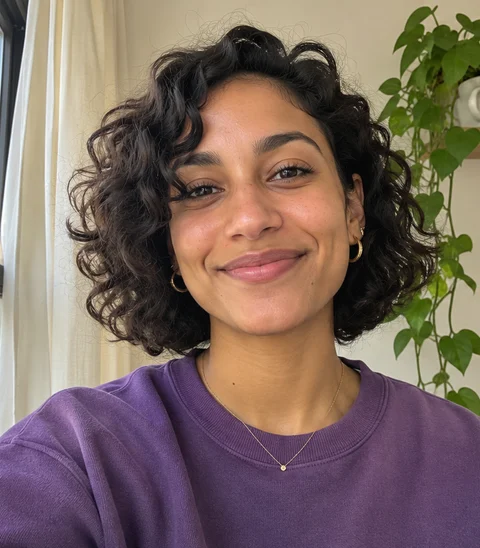
 Before
 After
Window-light selfie
Use a daylight selfie to compare how shorter curls and a stronger jawline change the way your face is framed.
Both versions keep the relaxed smile, violet sweatshirt, and soft window light.
SAME YOU. NEW POSSIBILITIES.
Upload a photo and see yourself as the opposite gender in seconds — free, no app download, no signup to preview.
 Before
 AfterBeforeAfter
2 free generations every day.
or drop it here · JPG, PNG, WebP · up to 10 MB
No signup. No payment. Your photo is only used to generate this result.
Your result and download link will appear here.
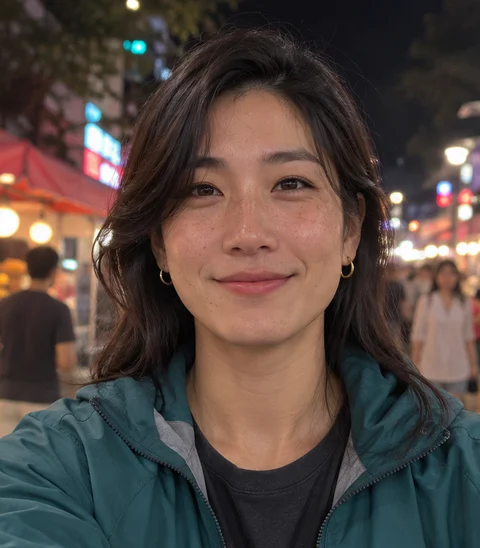
See a gender swap filter applied to two everyday portrait settings.
BeforeAfterUse a daylight selfie to compare how shorter curls and a stronger jawline change the way your face is framed.
Both versions keep the relaxed smile, violet sweatshirt, and soft window light.
BeforeAfterCompare swept hair and softer styling under colorful outdoor lights.
Both versions keep the teal jacket, smile, and lights in the background.
THREE SIMPLE STEPS
The gender swap filter starts with the photo you choose. Use a well-lit portrait where you can see the eyes and the outline of the face. The gender swap AI uses that image as a reference for the pose, expression, and setting. When the edit is ready, look at the preview next to your original and notice which details carried through.
Choose one clear portrait in JPG, PNG, or WebP format, up to 10 MB.
Select Male → Female or Female → Male before you generate your preview.
Download your result in seconds.
EXPLORE YOUR FEMININE SIDE
Start with a portrait where your eyes, eyebrows, and hairline are easy to see. The male to female filter gives you a way to explore how a different haircut or softer styling might frame the same expression. In the preview, compare the arch of the brows, the detail around the lashes, the makeup tones on the cheeks, and how individual strands of hair fall near the temples. Looking at those areas separately makes small edits easier to notice, especially when the original has even lighting and a simple background. A close portrait is useful for studying the eye area, while a head-and-shoulders photo gives you more room to compare the hairstyle and neckline. If you want another reference, open a comparison in the gallery and look at the same features in both images before choosing your own photo.
Try it free Before
 After
EXPLORE YOUR MASCULINE SIDE
To explore a more masculine presentation, start with a photo that shows the outline of your cheeks and chin. The female to male filter lets you compare the overall shape of the face, including how a stronger jawline or fuller brows can change the silhouette. Look at the jaw from ear to chin, then check how the cheekbones and the bridge of the nose read in the edited photo. Stubble along the jaw or a fuller beard can change how the chin and cheeks are framed. Try an image with the lower half of the face uncovered so those details are easy to see. A three-quarter angle can make the jaw easier to compare, while a straight-on photo makes it easier to see how the forehead, cheeks, and chin balance against one another.
Try it free Before
 After
Your browser resizes and re-encodes your photo before upload, which removes embedded metadata. When you start a preview, GenderSwapApp sends the resized image to an image processing service for face checking and editing. Our app processes the image in memory and discards it when the request ends. Read the privacy policy for more about the image provider and the cookie used to track your daily allowance.
$0
Generate and download your result for free.
Try it freeA LITTLE MORE CLARITY
The details before you try.
Yes. Upload a portrait, pick a direction, and generate an edited preview from that photo. Start with a front-facing image in even light so your eyes, nose, and mouth are easy to see. The example gallery shows how a familiar pose and setting can carry through to a different presentation.
Choose a tool based on how you want to use the result. For a quick styling experiment, a browser tool gives you simple controls and a preview you can review privately. At GenderSwapApp, your uploaded file is processed in memory and is not saved in our application storage. An image processing service receives the resized photo to perform the edit.
Choose Female → Male to explore a more masculine presentation in your portrait. You can compare how a shorter-looking haircut, a more defined jawline, and changes to brow styling affect the overall look. Use a photo with your face clearly visible, especially around the chin and cheeks, so you have a useful starting point for the comparison.
For a portrait edit, look for an image model that uses the uploaded photo as a reference. Compare how well the result carries over details like your expression, head angle, and background while changing the styling. A clear, evenly lit portrait can make those differences easier to judge when you review the result.
Upload a photo and choose Male → Female. Use a portrait where your face and hairline are visible if you want to compare changes in hairstyle, brows, and makeup-like details. After generating, look at the eye area and face shape alongside the original to see which styling changes stand out to you.
You can generate two images for free each day without creating an account. The tool shows how many free generations you have left, and you can try again later after using them. Each completed result is available as a 480 × 600 PNG that you can save to your device.
Open GenderSwapApp in your browser and select a JPG, PNG, or WebP photo from your device. The browser prepares the image before sending it for editing. When the preview is ready, use the download button to save the image with the rest of your files. The whole process runs on this page.
Open the page in your phone browser, tap the upload button, and pick a portrait from your photo library. You can use a file up to 10 MB, and the browser resizes it before upload. A well-lit selfie with one unobstructed face is a good starting point on a phone.